
The Hidden Diagnostic Menu on the iPod nano (6th generation)
The iPod nano (6th generation) has a hidden diagnostic menu to help troubleshoot the hardware. Here's how to activate it.
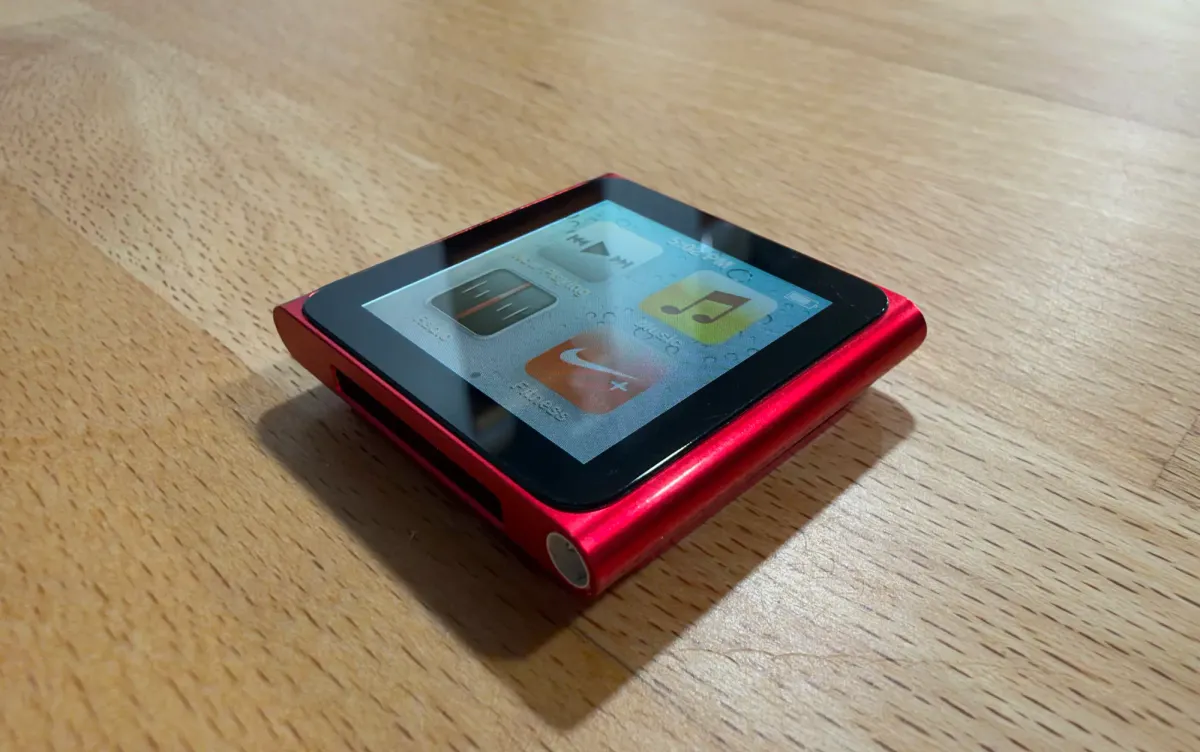
I'm a relatively late adopter of streaming music. While my college roommate was espousing the convenience of Spotify, I kept purchasing music from iTunes like it was still 2007. Sometime around 2018, I finally checked out Spotify and later Apple Music and my music collection hasn't really grown since.
I was thinking about just how much value I've received from Apple Music over the years, and I'm not sure it's been worth it – the music that I listen to is largely stuff that I've already purchased.
From a music discovery perspective, Apple Music has certainly provided value, but I imagine I could get similar value from the radio, like I did in the past.
Anyway, this internal debate got me interested in my old iPods. I went through my drawers and pulled out my old iPod nano (6th generation). I love this model for a few reasons.
First, although I don't think it was officially marketed this way, you can wear it on your wrist (we got the 1st generation of the Apple Watch about five years later). It has a clip to attach to your pocket or clothing, similar to an iPod shuffle. The form factor is very compact. And despite that small size, it still boasted 24 hours of battery life (when new, of course) and more storage (8GB or 16GB options) than a shuffle.
The battery has decayed some, since it's been in my drawer all these years. That got me wondering whether there was a way to view the battery health.
Alas, there is not a way, in iPod OS, to view the battery health.
What there is, however, is a hidden diagnostic menu.
Activating the Diagnostic Menu
First, I can't take credit for finding this. The guys over at iLounge did. Or, at least, that's where I found out about it. There's additional discussion on iFixit.
Read through all the steps before attempting. Timing is important.
- If the iPod nano is connected to your computer, eject it from Finder (I guess Windows users would still use iTunes?).
- With it powered on, hold down the Volume Down and Sleep buttons for approximately ~8 seconds, until the device turns off.
- Before the Apple logo appears, while continuing to hold the Volume Down and Sleep buttons, also hold down the Volume Up button.
- You should boot to a screen showing "iTerm: iPod Display Console".
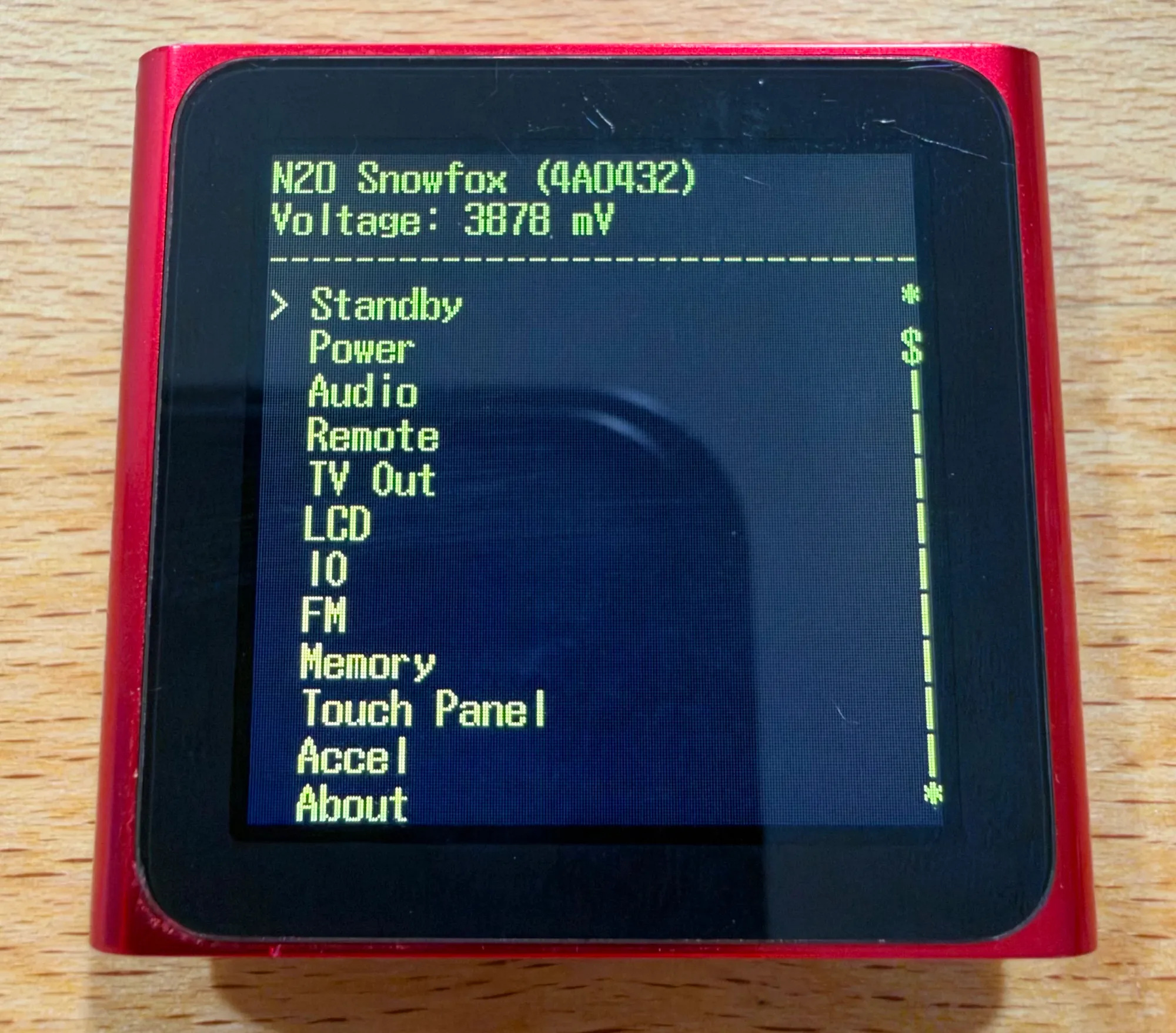
What's Possible in iTerm
Navigating is easy. Volume Down moves the cursor up. Volume Up moves the cursor down (okay, when phrased like this, it sounds counter-intuitive, but I swear it's not). The Sleep button is used to select an option. The submenus have a Go Back option to move to a previous menu.
From top to bottom, here are the options. Many of these have submenus under them. I am primarily interested in Power.
- Standby - puts the iPod to sleep & exits iTerm to boot back to iPod OS.
- Power
- PMU Status - prints various power info, like
VDD_OUT,VBAT, andTBAT - System Voltage - Prints various info relating to
BIST VBUCK1and otherBISTentries, all measured in mV. Too many to log here.
- PMU Status - prints various power info, like
- USB Current Limit - toggle options:
- Set to Suspend
- Set to 100mA
- Set to 200mA
- Set to 500mA
- Go Back
- Charger Status - prints the following information:
- Battery (3776 mV)
- PowerSource - 0x1 (does not change when plugged in or not)
- Battery Status - prints and updates the following information in real-time:
- Battery voltage: i.e. 3772 mV
- Charging current: i.e 0 mA (when unplugged; fluctuating ~30 mA when plugged into a MacBook Pro M4)
- Discharging current: i.e 110 mA (when unplugged & power drain mode enabled; 0 mA when plugged into a MacBook Pro M4)
- Power drain mode - seems to maximize brightness
- Audio
- Remote
- TV Out
- LCD
- IO
- FM
- Memory
- Touch Panel
- Accel - prints debugging information about the accelerometer.
- About
Power
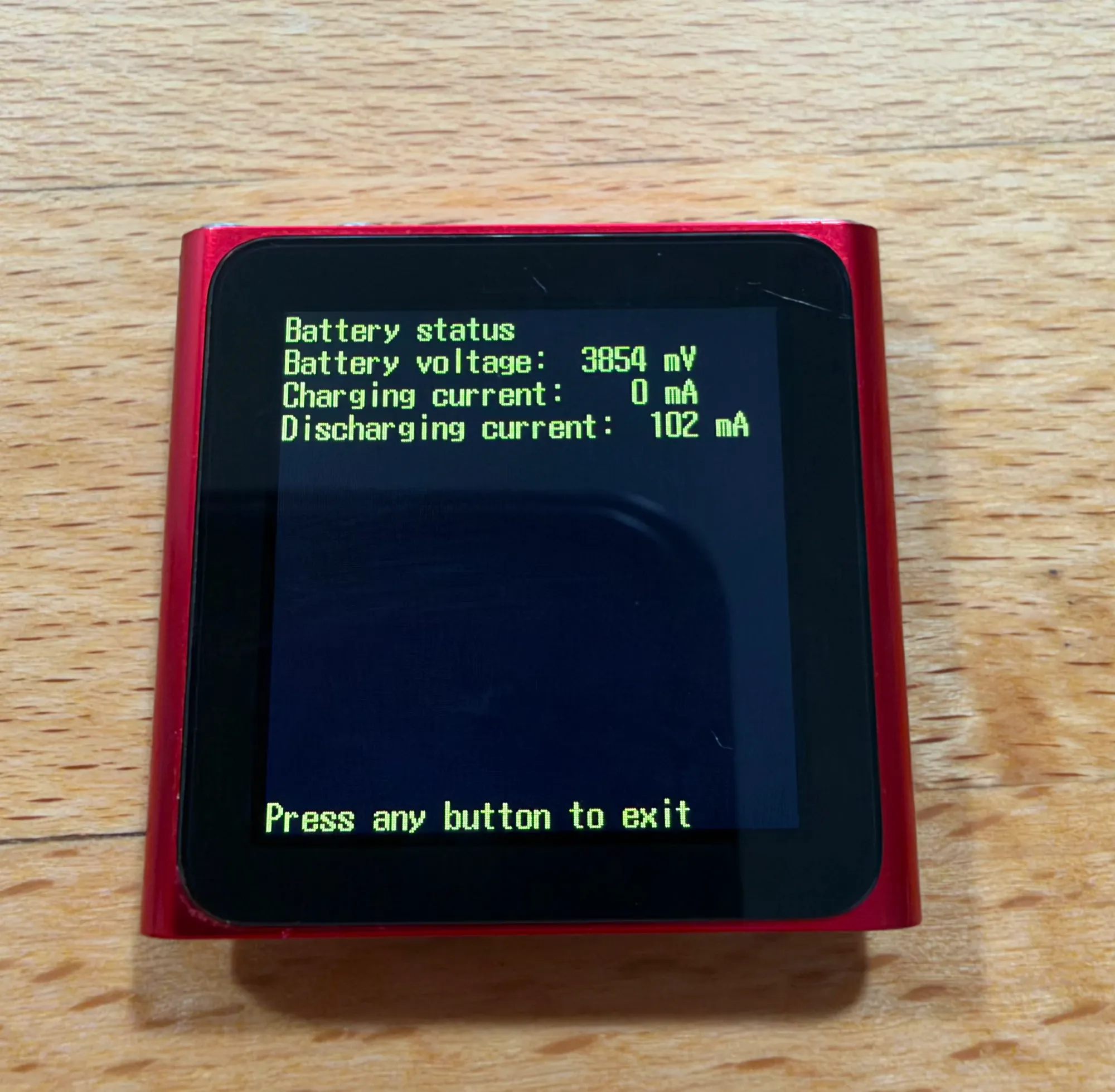
Under Power > Battery Status, we can see the current battery voltage and the discharging current. I'm clueless when it comes to power, so I can't say whether or not this information actually tells me anything about my battery's health.
The iPod nano (6th generation) shipped with a 3.7V, 105mAh battery. Does the output shown above give me any useful information about the battery in reference to that? I'm not sure.
Conclusion
The current battery has lasted a couple of hours over half capacity, so I can't complain much. In the process of trying to determine if there was a battery health feature, I learned about a cool diagnostic tool. Hopefully this helps someone else out there with their iPod nano!